 COME
COMELeave COME account screens safely on a shared device
Read the account state and use the appropriate sign-out route when you intend to end access.
Work through this situation
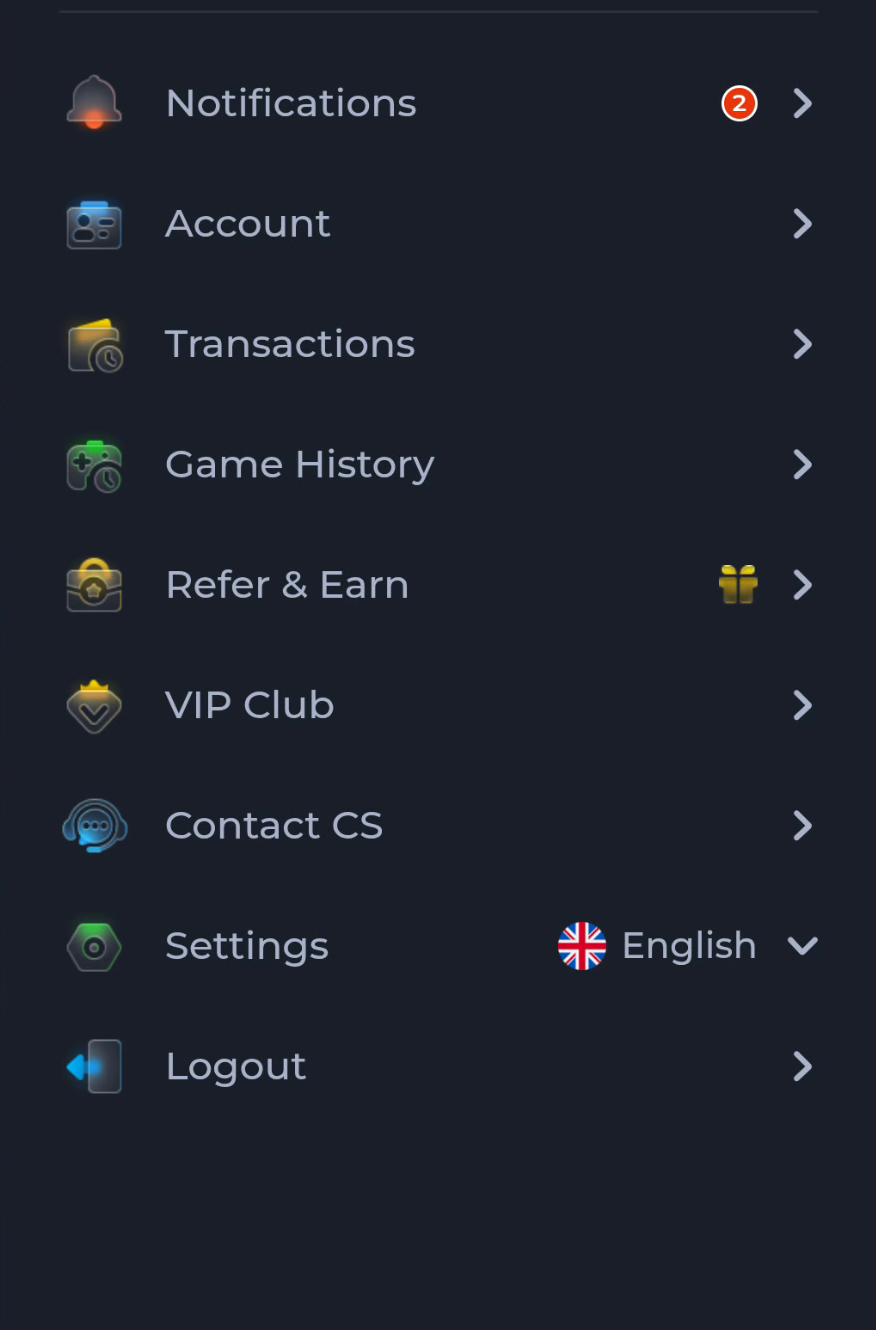
The account menu includes Logout. Closing a browser tab, deleting an APK or removing a home-screen shortcut does not by itself prove that a service session ended.
What to check and why
If your purpose is to end account access, use the account's Logout route and check that you are no longer in the signed-in context. Closing a tab or dismissing the app can leave a session available. Removing a saved APK addresses a file and says nothing about whether the account remains accessible.
On a shared device, also avoid leaving sensitive screenshots or saved credentials available to another person. Use the device and browser controls appropriate to the surface you used, while recognising that clearing local data differs from deleting an account. Do not select Delete Account simply because you want to sign out after one session.
Recognise the relevant screen
Match help to the task
The account menu and Customer Center provide different routes for preferences, records and assistance. A help-category answer explains a topic, while an account-specific issue needs the relevant service context. Read the visible wording on your own screen because layouts can change. This website provides explanations and navigation; it cannot complete an account action or alter a service record.
What a completed answer looks like
You have deliberately ended the relevant session without confusing it with file cleanup.
If the screen still does not answer the question, keep the exact wording and use the matching in-app help context.
Choose another specific COME guide